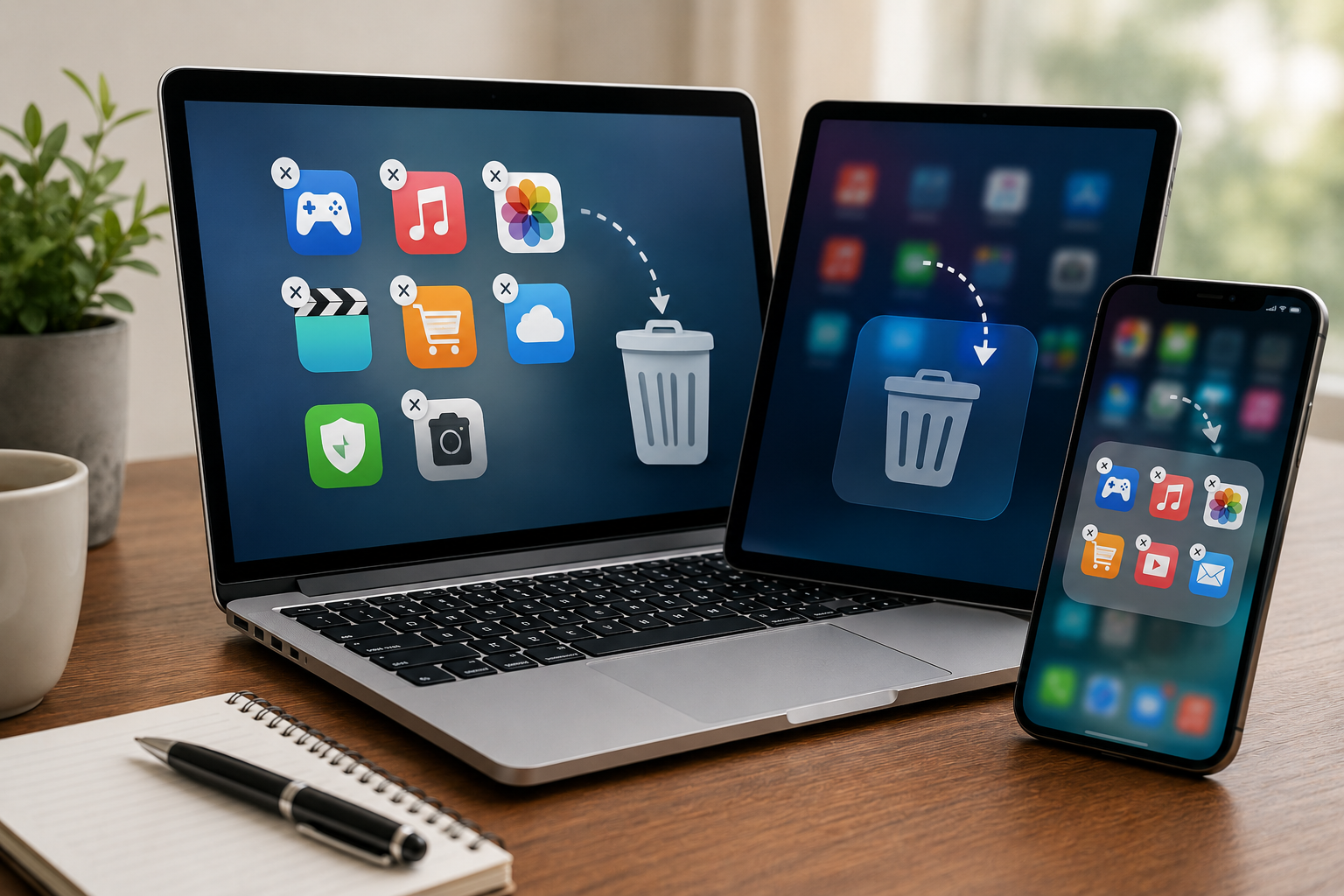
When you buy a new computer, tablet, or smartphone, it may already contain dozens of apps. Some are useful, but many are games, trial programs, shopping tools, music services, photo apps, or other software you may never open.
These preinstalled programs are often called bloatware. The name simply means software that takes up space or uses device resources without providing much value to you.
Unused apps may seem harmless, but they can create security and performance problems over time. A simple device cleanup can help protect your information and keep your technology running more smoothly.
Why Unused Apps Can Be a Security Risk
Every app on your device is another piece of software that must be maintained.
Software companies regularly release updates to fix security weaknesses. If an app is outdated, abandoned by its developer, or no longer receiving updates, criminals may try to take advantage of known flaws.
An app does not need to be open every day to create a risk. Some programs continue running in the background, connecting to the internet, collecting information, or displaying notifications.
Removing apps you do not use reduces the number of programs that need to be monitored and updated.
Unused Apps Can Also Slow Down Your Device
Extra apps may use storage space, memory, battery power, and internet data.
Some programs start automatically when you turn on your computer. Others run quietly in the background on your phone or tablet. Over time, this can cause your device to feel slower or make the battery drain more quickly.
Removing unnecessary apps may help:
- Free up storage space
- Improve startup speed
- Reduce unwanted notifications
- Extend battery life
- Make software updates easier to manage
- Reduce potential security risks
What Types of Apps Should You Review?
Start by looking for apps you do not recognize, no longer use, or did not intentionally install.
Common examples include:
- Trial versions of antivirus or office software
- Games you never play
- Shopping or coupon apps
- Duplicate photo or music programs
- Manufacturer promotional apps
- Old video-calling or messaging tools
- Apps connected to services you no longer use
- Programs installed for a one-time event or project
Do not remove an app simply because its name looks unfamiliar. Some programs help your device operate correctly.
When in doubt, search for the app’s name on the device manufacturer’s official website or ask a trusted technology professional.
How to Remove Apps Safely
On a Windows Computer
Open Settings, select Apps, and then choose Installed apps or Apps and features. Review the list and select the program you want to remove.
Click Uninstall and follow the instructions.
Avoid deleting program folders manually. Using the uninstall option helps remove the software properly.
On a Mac
Open the Applications folder and locate the app you want to remove. Drag it to the Trash, or use the app’s built-in uninstall tool if one is provided.
Some security programs and larger applications require a special removal process.
On an iPhone or iPad
Press and hold the app icon until a menu appears. Select Remove App, then choose Delete App.
Be careful not to remove an app that stores information you still need unless you have backed it up.
On an Android Device
Press and hold the app icon and select Uninstall, or open Settings, choose Apps, select the app, and tap Uninstall.
Some preinstalled apps cannot be fully removed. In those cases, you may be able to disable them.
Review App Permissions Too
While reviewing your apps, take a moment to check what information they can access.
An app may have permission to use your:
- Camera
- Microphone
- Contacts
- Photos
- Location
- Text messages
- Files
A simple calculator app, for example, usually does not need access to your contacts or microphone.
Remove permissions that do not make sense. If an app cannot function without unnecessary access, consider deleting it and choosing a more trustworthy alternative.
Do Not Forget Browser Extensions
Browser extensions are small add-ons installed in Chrome, Edge, Firefox, Safari, and other browsers. They may block advertisements, save passwords, change your homepage, or provide shopping discounts.
Extensions can also collect browsing information or create security problems if they are outdated or untrustworthy.
Open your browser’s extension or add-on settings and remove anything you do not use or recognize.
How Often Should You Clean Up Your Devices?
A quick review once a month is usually enough for most people.
You do not need to uninstall apps every week, but it is wise to check regularly for programs you no longer use. You should also install operating system and app updates as soon as practical.
A simple routine can include:
- Remove apps you no longer use.
- Update the apps you keep.
- Review app permissions.
- Check browser extensions.
- Restart the device after updates.
- Confirm that important files are backed up.
Be Careful With “Cleaner” Apps
You may see advertisements for programs that promise to clean, speed up, or repair your device automatically.
Some are legitimate, but others use frightening warnings to pressure people into paying for unnecessary services. A few may even install unwanted software.
Use the cleanup tools already included with your device whenever possible. Download software only from official app stores or trusted company websites.
A Small Cleanup Can Make a Big Difference
Removing unused apps is a simple step that can improve both security and performance. It reduces clutter, frees up space, and limits the number of programs that could develop security problems.
Take a few minutes to review your laptop, tablet, and smartphone. Keep the apps you use, update the ones you trust, and remove the rest carefully.
When you are unsure about a program, pause before deleting it. Ask a trusted family member, technology professional, or the device manufacturer for help. A careful cleanup is always better than accidentally removing something important.


.png)