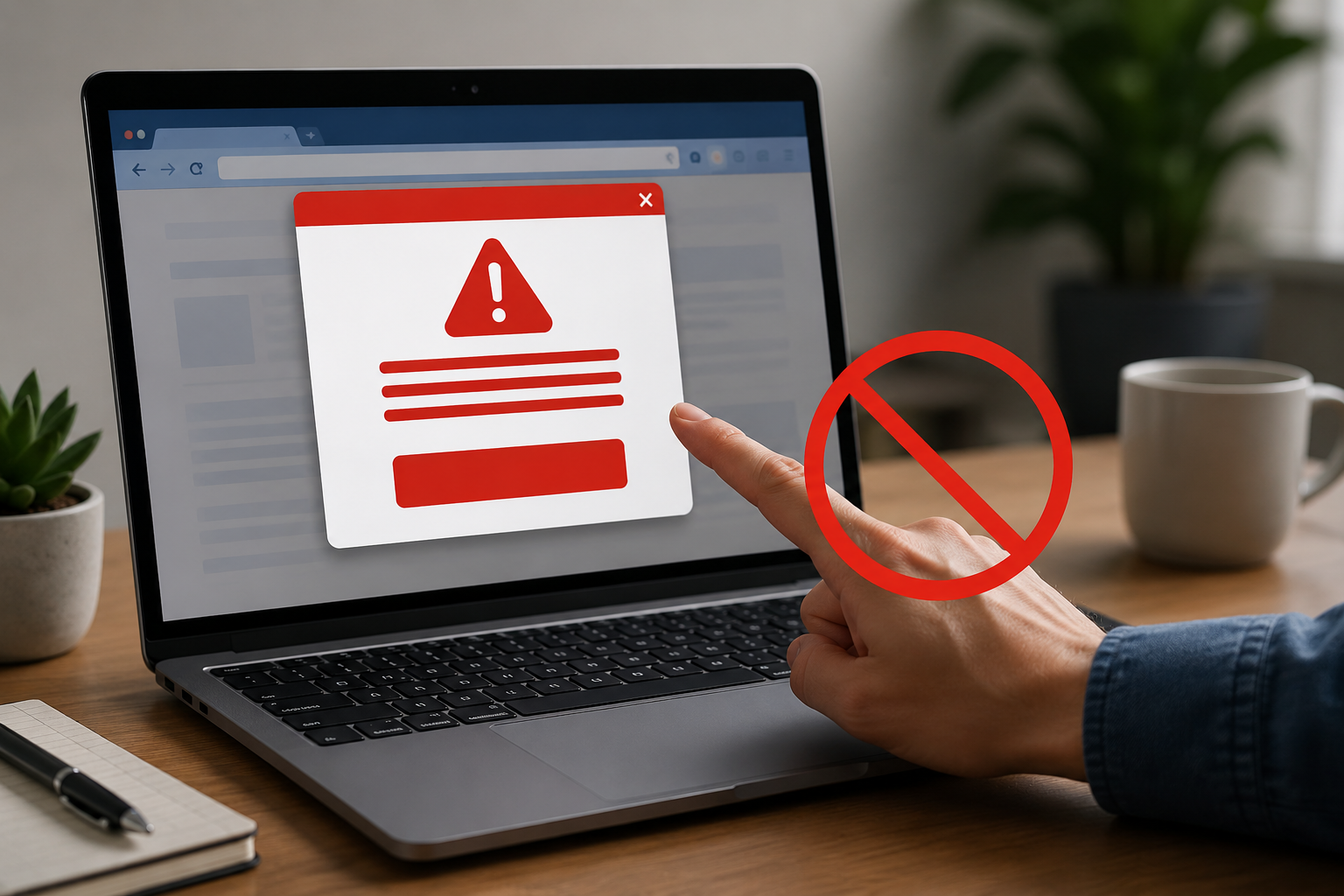
Imagine you're checking email, browsing the web, or reading the news when suddenly a large warning appears on your screen.
"Your computer is infected with a virus!"
"Immediate action required!"
"Click here to scan your device!"
These alarming messages are designed to make you panic and react quickly. Fortunately, they are often nothing more than a scam.
What Is a Fake Virus Alert?
Fake virus alerts, sometimes called scareware, are fraudulent pop-up messages that pretend to be legitimate security warnings. Cybercriminals use them to trick people into clicking links, downloading malicious software, or calling fake technical support numbers.
These alerts are often designed to look like official messages from Microsoft, your operating system, or a well-known antivirus company. They may even include logos, warning sounds, or flashing messages to make them appear authentic.
The goal is simple: get you to click.
Why These Pop-Ups Are Dangerous
When someone clicks a fake virus alert, several things can happen:
- Malicious software may begin downloading onto the device.
- The user may be redirected to a fraudulent website.
- Personal information could be requested.
- The scammer may attempt to sell unnecessary or fake security services.
- In some cases, criminals may gain remote access to the computer.
Because these scams rely on fear and urgency, it's important to pause and think before taking any action.
What You Should Do Instead
If a suspicious virus warning appears on your screen, do not click anywhere inside the pop-up.
This includes:
- "Scan Now"
- "Remove Threat"
- "Cancel"
- "Close"
- The "X" button in the corner
In some cases, clicking any part of the pop-up can trigger unwanted downloads or redirect you to malicious websites.
Step 1: Close Your Browser
The safest first step is to close your web browser entirely.
If the browser closes normally, reopen it afterward and avoid restoring the page that displayed the warning.
Step 2: Force Close the Browser If Necessary
If the pop-up prevents you from closing the browser, use your computer's built-in tools to force it to close.
For Windows PCs:
- Press Ctrl + Alt + Delete
- Open Task Manager
- Select your browser
- Choose End Task
For Mac Computers:
- Press Command + Option + Esc
- Select your browser
- Click Force Quit
This will shut down the application without interacting with the suspicious pop-up.
Step 3: Run a Legitimate Security Check
After closing the browser, run a scan using your trusted antivirus software or contact your IT support provider if you have one.
A legitimate security scan can determine whether your device is actually infected.
How to Spot a Scareware Pop-Up
Watch for these common warning signs:
- Messages that create a sense of panic or urgency.
- Claims that your computer is heavily infected without any prior scan.
- Requests to click immediately.
- Unexpected phone numbers for "technical support."
- Poor grammar, spelling mistakes, or unusual formatting.
- Warnings that appear inside a web browser rather than your security software.
Remember: legitimate antivirus programs generally do not use random web pages to deliver emergency warnings.
A Good Rule to Remember
If a virus warning appears unexpectedly while you're browsing the internet, treat it with caution.
Don't click.
Don't call the number.
Don't download anything.
Close the browser, run a legitimate security scan, and contact trusted IT support if you're unsure.
Final Thoughts
Cybercriminals often succeed because they catch people off guard and convince them to act before thinking. By recognizing fake virus alerts and knowing how to respond, you can avoid becoming a victim of scareware scams.
The next time a frightening pop-up claims your computer is infected, remember: the safest action is often doing nothing at all—except closing the browser and verifying the situation through trusted sources.
Quick Safety Checklist
✓ Never click on suspicious virus alerts
✓ Avoid clicking "Close," "Cancel," or "Scan Now" buttons
✓ Close or force quit your browser
✓ Run a trusted antivirus scan
✓ Contact your IT provider if you're unsure
✓ Stay calm and verify before taking action

.png)