Are you still using passwords like ABC123, password35, or your pet’s name?
It may be time for a safer approach.
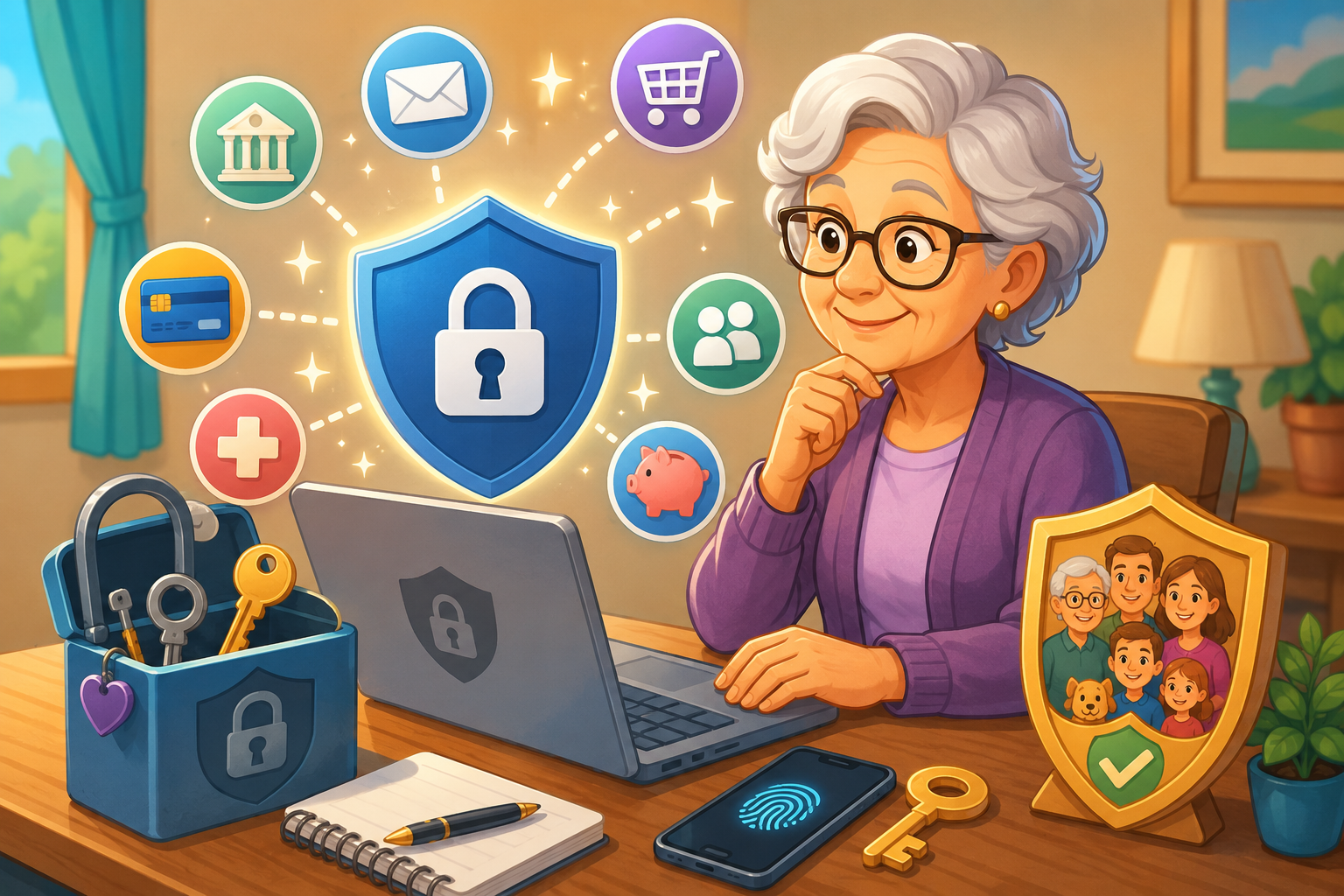
Passwords are like the keys to your online home. They protect your email, bank account, medical portal, shopping accounts, social media, and other personal information. If a criminal guesses or steals one of your passwords, they may be able to get into your account.
Older adults are often hit especially hard by online fraud. Reports from groups like the FBI and FTC have shown that people lose large amounts of money to scams and cybercrime each year. Because these numbers can change often, it is always wise to check the latest figures from official sources.
The good news is that a few simple habits can make your accounts much safer.
Key Takeaways
Using the same password on more than one account is risky. If one website is hacked, criminals may try that same password on your other accounts.
Long passwords are usually safer than short ones. A long phrase you can remember may be easier and stronger than a short, complicated password.
A password manager can create and remember strong passwords for you, so you do not have to memorize them all.
1. Do Not Use Obvious Passwords
Many people choose passwords that are easy to remember. Unfortunately, easy-to-remember passwords are often easy for criminals to guess.
Avoid passwords such as:
123456
password
admin
abc123
123456789
Password
qwerty
Also avoid using personal information, such as:
Your birthday
Your anniversary
Your child’s name
Your grandchild’s name
Your pet’s name
Your street name
Your favorite sports team
Criminals may find these clues on social media or through scam emails.
A safer password should be hard for someone else to guess, even if they know a little about you.
2. Use a Different Password for Every Account
Never use the same password for all your accounts.
For example, imagine you use the same password for your email, bank, and favorite shopping website. If the shopping website has a security problem, criminals may try that same password on your email and bank accounts.
That is why each account should have its own password.
This is especially important for:
Email accounts
Bank accounts
Credit card accounts
Medical portals
Retirement or Social Security accounts
Shopping accounts that store payment information
Your email password is especially important because many websites use your email to reset passwords. If someone gets into your email, they may be able to get into other accounts too.
3. Make Your Password Long
A longer password is usually harder to crack.
Try to use at least 12 characters. Even better, use 16 to 20 characters when a website allows it.
A character means any letter, number, or symbol. For example:
Letters: A, b, C
Numbers: 4, 7, 9
Symbols: !, @, #, $, %, &
A password like this is too short and too easy:
dog123
A stronger password would be longer and less predictable, such as:
BlueBird$ingsAt7
Do not simply repeat letters to make a password longer. For example, paaaassword is still weak because it is based on an obvious word.
4. Use Symbols and Numbers
You can make passwords stronger by mixing letters, numbers, and symbols.
Symbols are the special marks on your keyboard, such as:
!
@
#
$
%
&
You can also replace some letters with numbers or symbols. For example:
Use 0 instead of the letter O
Use 3 instead of the letter E
Use $ instead of the letter S
For example, the phrase “good enough” could become something like:
G00dEnuf!47
This kind of password is harder to guess than a regular word.
Just make sure it is still something you can type correctly.
5. Try a Passphrase
A passphrase is a longer password made from several words or a short sentence.
Passphrases can be easier to remember than random letters and symbols.
For example, instead of a short password like:
Polly1
You could use a longer passphrase like:
MyBirdPollySings!
Or:
CoffeeAt7IsBest!
A passphrase should still be hard for someone else to guess. Do not use a phrase that is famous, such as a song lyric, Bible verse, movie quote, or common saying.
A good passphrase is personal enough for you to remember, but not something others could easily figure out.
6. Consider Using a Password Manager
A password manager is an app that creates and stores strong passwords for you.
Think of it like a locked notebook on your phone or computer. You only need to remember one main password. The password manager remembers the rest.
A password manager can help you:
Create strong passwords
Store different passwords for each account
Fill in passwords when you sign in
Avoid writing passwords on loose paper
Reduce the temptation to reuse the same password
Examples of password managers include 1Password, Bitwarden, Dashlane, Keeper Security, and LastPass. Some are paid services, and some offer free versions.
Apple, Google, and Microsoft also offer built-in password tools on many phones and computers.
Before choosing one, check the current features, prices, and reviews because they can change over time.
Bonus Tip: Learn About Passkeys
A passkey is a newer way to sign in without typing a regular password.
Instead of entering a password, you may use:
Your fingerprint
Face recognition
A PIN
A pattern or approval on your device
A PIN is a short number you enter to unlock a device or account.
Passkeys can be easier and safer because criminals cannot simply guess them the way they might guess a password.
Apple, Google, and Microsoft all offer passkey options on many devices and accounts. The exact steps depend on your phone, computer, browser, and account settings.
When Should You Change a Password?
You should change a password right away if:
You think someone else knows it
A company tells you there was a data breach
You clicked a suspicious link and entered your password
You see strange activity in your account
You reused that password on another account that was hacked
Some experts also suggest changing important passwords every few months. However, many security experts now focus more on using strong, unique passwords and changing them quickly when there is a problem.
For your most important accounts, such as email and banking, it is wise to review your passwords regularly.
A Simple Password Safety Checklist
Use a different password for every account.
Make each password long, ideally at least 12 characters.
Avoid names, birthdays, pet names, and common words.
Use a mix of letters, numbers, and symbols.
Consider using a password manager.
Turn on extra protection when available, such as passkeys or two-step verification.
Change passwords quickly if an account may have been exposed.
Final Thought
You do not need to become a computer expert to protect yourself online.
Start with your most important accounts: your email, bank, credit card, and medical accounts. Make sure each one has a strong, unique password. Then consider using a password manager to help keep everything organized.
A few careful steps today can help protect your money, your privacy, and your peace of mind.
Blog is based on post by Marc Saltzman
For more information see: https://www.aarp.org/personal-technology/build-better-passwords/

.png)